Part 2: Core Features in practice
2.1 Communicating effectively: the art of prompting
The most important skill for making good use of UvA AI Chat is learning how to communicate clearly with the AI. This is often called prompting: writing the instruction, question or task you give to the AI.
A good prompt helps the AI understand what you want, why you want it, and what kind of answer would be useful. The quality of the output is strongly influenced by the quality of your instructions. A clear prompt often leads to a more relevant and usable answer, while a vague prompt usually leads to a more general response.
At the same time, prompting is not about writing one perfect instruction. UvA AI Chat is conversational. You can always ask follow-up questions, correct the answer, add missing context, or ask the AI to rewrite, shorten, expand or improve its response.
What is a prompt?
A prompt is the instruction or question you give to the AI.
| Simple prompt | More specific prompt |
|---|---|
| Explain this concept in simple language. | Explain the concept of academic citizenship to a first-year university student. Use simple language, give one example from education, and end with two reflection questions. |
The second prompt is more helpful because it gives the AI more direction. It explains the topic, the intended audience, the desired style and the format of the answer.
How an answer comes together
When UvA AI Chat generates an answer, it does not only look at the sentence you just typed. The answer can also be shaped by the surrounding context of the conversation.
Depending on how you are using UvA AI Chat, this context may include:
| Type of context | What it means |
|---|---|
| Your current prompt | The question or instruction you type. |
| The conversation so far | Earlier messages in the same chat can influence later answers. |
| Persona or project instructions | If you are using a persona or project, the AI may follow extra instructions about role, tone, task or working method. |
| Project Knowledge | In projects, UvA AI Chat can use reusable knowledge cards: short pieces of durable information from earlier project chats, such as decisions, preferences, facts or task details. |
| Uploaded documents or tools | If documents or tools are available in the chat, the AI may use them to answer more specifically. |
This means that prompting is not only about the text you type in one message. It is also about making sure the AI has the right context to work with.
Why context matters
AI answers depend heavily on the information available to the model. If important information is missing, the answer may be too broad, incomplete or based on assumptions. If the right context is provided, the answer can become more relevant and better aligned with your goal.
| Less helpful | More helpful |
|---|---|
| Write a summary. | Summarize this text for a lecturer who wants to quickly understand the main argument. Use around 150 words and focus on the implications for teaching. |
The improved prompt gives the AI a task, audience, length and focus.
Context window When a conversation becomes too long, UvA AI Chat automatically leaves older messages out of the active context. In these long conversations, UvA AI Chat can automatically summarise earlier messages. This keeps the main information available while freeing up space in the context window for new messages.
Memory UvA AI Chat can extract useful details from your conversations overnight and re-use them in future chats. You can view, edit, or delete your memories in Settings > Personalisation.
Project Knowledge: reusable context in projects
In UvA AI Chat projects, Project Knowledge can help preserve useful information across project chats. Instead of relying only on hidden or informal memory, important information can be stored as explicit knowledge cards.
A knowledge card is a small, reusable piece of information, such as:
| Knowledge card may contain... | Example |
|---|---|
| A decision made earlier in the project | “The workshop will be aimed at first-year students.” |
| A target audience | “The text should be understandable for lecturers without technical AI knowledge.” |
| A preferred tone or writing style | “Use a clear, accessible and didactic tone.” |
| A recurring constraint | “Keep manual entries concise and practical.” |
| An important fact that should be remembered later | “The module is intended for both students and staff.” |
When relevant, UvA AI Chat can use these cards in later answers. This helps the AI stay consistent across different chats within the same project. It also makes the use of context more transparent: knowledge cards can be inspected, edited, archived or excluded.
Project Knowledge is useful because stored context is not automatically perfect. A card may become outdated, too general or no longer relevant. The most recent instruction you give should always guide the answer. If the AI seems to rely on old or incorrect context, correct it explicitly.
For example:
Ignore the earlier project assumption that this text is for students. This version is for lecturers.
Or:
Use the project knowledge about the workshop audience, but do not use the earlier proposed structure.
Structure of an effective prompt
A well-structured prompt usually contains three main elements:
| Element | What to include | Example |
|---|---|---|
| Context | Briefly explain the situation. What is the task about? Who is the audience? What background should the AI know? | “I am writing a short introduction for a Canvas module about AI and sustainability.” |
| Question or instruction | Clearly state what you want the AI to do. | “Write a clear paragraph for students and lecturers.” |
| Specific details or criteria | Add requirements such as tone, length, format, difficulty level, sources to use, or focus points. | “Keep it accessible, avoid technical detail, and mention that exact numbers about AI energy use are often uncertain.” |
Combined, this becomes:
I am writing a short introduction for a Canvas module about AI and sustainability. Write a clear paragraph for students and lecturers. Keep it accessible, avoid technical detail, and mention that exact numbers about AI energy use are often uncertain.
Phrase instructions positively
A useful prompting habit is to describe what you do want, rather than only saying what you do not want.
| Less helpful | More helpful |
|---|---|
| Write an introduction for my essay, but don’t use jargon and don’t make it longer than 200 words. | Write an accessible introduction of around 200 words for my essay on Italo Calvino. Use clear, simple language and briefly define the main concepts. |
The second version gives the AI a clearer target.
Key takeaway
Prompting is the practice of giving the AI clear instructions and useful context. A good prompt tells the AI what to do, why it matters, who the answer is for, and what kind of output you need.
In UvA AI Chat, answers may also be shaped by broader context, such as personas, project instructions, uploaded documents, tools, memory or Project Knowledge. This can make answers more useful and consistent, but it also means that you should stay aware of what context the AI may be using.
Good prompting therefore means not only asking clear questions, but also guiding, checking and correcting the context behind the answer.
2.2 "Prompts": Your personal collection of instructions
The "Prompts" is a feature that helps you work more efficiently by reusing effective prompts. You'll find the "My prompts" section via the book icon in the left sidebar of UvA AI Chat.
Using standard prompts
"Prompts" includes a collection of predefined prompts for common tasks. Examples include "feedback on your writing" and the "multiple choice question generation." These standard prompts are designed by experts and already have a strong structure. You can select a standard prompt and easily adapt it to your specific needs, allowing you to get fast, effective results.
Saving and reusing your own prompts
If you notice you're repeating certain tasks or instructions, you can save your own prompts in "Prompts". This is especially useful for complex, recurring assignments.
Practical example: Saving a custom prompt
Suppose you frequently write academic texts in English and want them checked for formal writing style. You can draft a highly effective prompt for this and save it for future use.
- Write your effective prompt.
- Go to "Prompts" and select "Add prompt".
- Give your prompt a clear name, like "Academic English Check".
- Paste your prompt in the text field: "Analyze the attached English text. Act as an experienced editor for an academic journal. Identify and correct sentences that are too informal for scientific publication. Replace colloquial language with formal alternatives, check for consistency in terminology, and suggest ways to vary sentence structure for better readability."
- Save the prompt. It's now available for easy reuse in future conversations.
Want to quickly reuse a previously saved prompt? Just click the book icon at the bottom of the text box in UvA AI Chat to see a list of your recent prompts and insert the one you need instantly.
Letting the AI search the internet
UvA AI Chat has a 'knowledge cutoff'; its knowledge is not up-to-date. To have the AI work with recent, online information, you can enable the internet search function. To do this, click on the 'swiss army knife' icon in the top right of a chat window and check 'Internet Search'. After you have activated the function, it is important that you state in your prompt that the AI should use the internet. For example, start your question with: "Search the internet for...". Please keep in mind that this functionality is still in development and does not always work flawlessly.
2.3 Uploading and analyzing documents
One of the most powerful features of UvA AI Chat is the ability to upload your own documents and use them as a contextual basis for your queries. This allows the AI to work with the specific information you provide, rather than just its general knowledge base. This makes the chatbot more powerful and reliable as it can give more accurate and well-supported answers based on your chosen sources.
Uploading documents
With UvA AI Chat, uploading documents is simple. Go to the text entry field at the bottom of the screen and click the paperclip icon . Then select the files you want to add from your computer. Once uploaded, the documents are immediately available for further use within the current conversation.
Supported file formats
UvA AI Chat supports a wide range of common file formats, including .PDF, DOCX (Word),XLS (Excel), .PPT (PowerPoint), .CSV, .TXT, .PY (Python), and .MD (Markdown), along with 30+ additional file types (for the full list, check chapter 4.6). This makes it possible to upload and work with various document types, ranging from research articles and datasets to plain text and code files, directly in your interactions with the AI.
Note: Large, unusual, or password-protected files may not always process correctly. If a document is very large (e.g., 100+ pages), the AI is essentially searching for a needle in a haystack.
Processing options and workflow
Once uploaded, the AI won't do anything with the document until you give an instruction. The document acts as a knowledge source for the AI. You can have texts analyzed, summarized, translated, or have the AI retrieve specific information from the document. The key is combining document upload with a precise prompt.
Practical example of integration in your workflow
A researcher is working on a literature review and has a 50-page PDF report that's relevant to her research.
- Uploading: She clicks the paperclip and uploads the PDF report to the chat.
- Prompting: Next, she asks a specific question about the document's content. An effective prompt could be: "Analyze the recently uploaded report and identify all sections related to sustainable policy. Summarize the key recommendations in bullet points, and for each recommendation, cite the page number where it can be found."
With this approach, the researcher saves time and receives a focused, actionable analysis of the uploaded text, ready for use in her own work.
Retrieval-Augmented Generation (RAG)
The technology by which uploading and analyzing documents functions is called Retrieval-Augmented Generation (RAG). This works by augmenting the language model's generation with information retrieved from your uploaded documents. When you submit a prompt, the system first compares your query to your documents and then retrieves pieces of information from your documents that seem relevant for your prompt. It can take a maximum of 10 pieces of information. These snippets are then added to your prompt as context and processed by the language model (LLM) to generate a more accurate and well-supported answer. This is immensely powerful, as it allows the AI to base its answer on specific contextual information you choose. However, it also has limitations; for example, it is not designed to summarize very large texts (it can only take 10 snippets).
2.4 Generating and analysing images
In addition to text-based tasks, UvA AI Chat can also generate images based on your descriptions. This is useful for creating illustrations for presentations, visualizing concepts, or for creative projects. To generate an image, simply ask for one in the chat's text box. As with textual prompts, the more detailed and specific your description, the better the result will fit your expectations. As always, you can ask AI to help you refine your prompt. Note that the image generator in UvA AI Chat is not yet reliable for creating images containing text.
Practical example of a detailed image prompt
Instead of asking something like "make a picture of a flower," you'll get far better results with a detailed prompt.
- Too general: "Generate a tulip".
- Detailed: "Generate an image in the style of a 19th-century botanical illustration. The image should show a tulip with clear, fine lines highlighting the details of the petals, stem, and leaves. The background should resemble parchment with a light texture".
Analyzing images
Use the photo icon at the bottom right of the text box to add images. After uploading, the AI can describe and interpret the content. Always include a prompt explaining what you want the AI to analyze. Note: the AI cannot always accurately interpret text, charts, or tables contained within images. In addition to uploading images using the paperclip icon , you can now also paste images directly into the chat. Simply copy an image from your computer or a webpage and paste it into the text entry field of UvA AI Chat. The image will be uploaded and ready for analysis.
2.5 Artifacts
The "Artifacts" feature in UvA AI Chat is a powerful tool designed to support collaborative work with the AI. An artifact is a separate window (with text, code, or visualizations) that both you and the AI can edit. This allows for easy collaboration as you can ask the AI to edit the artifact, and you can select pieces of text in the artifact and tell the AI to specifically edit those. Additionally, you can edit the text manually. This makes the AI more into a creative partner rather than just a text generator.
How to use artifacts
- Activate the feature: To begin, you must select the "Artifact Creation" feature within the UvA AI Chat interface (click the three dots in the chat window_. This signals to the AI that you are looking for a output in a separate window for further editing.
- Provide a clear instruction: In the chat box, enter an instruction that clearly defines the topic and the type of artifact you need. For example, you could prompt the AI with: "create an artifact comparing Keynesian and Neoclassical economic theories."
- Review the generated output: The AI will then produce an artifact based on your request. In the example of economic theories, the output could be an overview of the key principles, assumptions and political implications.
- Collaborate on revisions: The platform allows you to refine the artifact collaboratively. You can make direct edits in the dedicated text or code window, or you can give the AI further instructions in the chat to modify or expand a specific section of the artifact. You can also select pieces of text or code and ask AI to modify those.
- Save your work: Make sure that if you manually edit the artifact, you first save the artifact before you ask the AI to continue editing it, you can do this by clicking on the "save" icon on the top right of the artifact. When you ask the AI to edit the artifact a new version will automatically be saved. Previous versions will also be saved, so you can track changes and revisit previous iterations if necessary by clicking on the arrows at the top left of the artifact. The completed artifact can then be downloaded for use in your research paper, presentation, or other academic projects. Do this by clicking on the arrow at the top right corner of the artefact, and selecting "download as".
In Artifacts kun je ook prototypes bouwen van websites, interactieve apps, datavisualisaties en automatiseringen die gebruik kunnen maken van de taalmodellen die beschikbaar zijn via UvA AI Chat. Zo combineer je de betrouwbaarheid van reguliere code met de flexibele, generatieve mogelijkheden van AI. Je kunt bijvoorbeeld adaptieve feedbacktools, gepersonaliseerde applicaties, interactieve leeromgevingen of websites maken die op basis van gebruikersinput dynamisch content genereren en daarop reageren.
2.6 Study Mode
"Study Mode" in UvA AI Chat turns the assistant into a guiding tutor. Instead of giving answers right away, the AI first asks questions, offers hints, and waits for your response before continuing. It helps prevent you from outsourcing too much of your thinking to AI. By actively practicing reasoning and formulating your own answers, you keep training and developing your critical thinking skills. The goal is that you reason yourself and thus reach better understanding.
How to use Study Mode
-
Activate and set a learning goal: click on the graduation cap in UvA AI Chat and switch on Study Mode. To turn it off, click the cross next to Study. Then set a learning goal by specifying what you want to learn about and mention what you already know. Examples:
- "I am preparing a seminar on the French revolution and specifically the storming of the Bastille, help me understand the causes and interpretations of the cause."
- "I am preparing for an exam in research skills and want to understand how to compare two groups using statistics. Explain which methods are suitable, such as the t-test, and when it is better to use another test."
-
Work in dialogue: The AI asks open questions and waits for your answer. You can indicate how you want to be guided: ask for smaller steps, hints instead of answers, or feedback on your reasoning. You can also request specific forms, such as a multiple-choice question, concrete examples, or metaphors.
-
Adjust pace and level: Redirect where needed: "use simpler language", "make it harder", or "go faster/slower". The AI adjusts its questions, explanations, and examples accordingly.
-
Conclude and record: To consolidate your learning, finish with a recap or practice material. Examples: "Summarise in five bullet points the most important lessons from this conversation" or "Give three practice questions with short solutions." If you want to save the result or work it out further, combine Study Mode with Artefacts. This allows you to edit notes, tables, or draft texts in a separate window and retrieve them later.
2.7 Use the Speech-to-Text Function
UvA AI Chat supports voice input and text-to-speech output. Below is an overview of how to use it and how to configure the settings.
Getting Started
To use speech input, click the microphone icon in the chat input bar. UvA AI Chat will start recording your voice and transcribe it into text automatically.
Speech Settings
You can configure the speech behaviour by clicking the Settings menu in the bottom left corner under the radial icon and then selecting Speech. The following options are available:
| Setting | Description |
|---|---|
| Auto-reply | Automatically reads assistant replies aloud after you send a message using speech transcription |
| Interrupt speech on voice input | Stops text-to-speech playback as soon as you start speaking again |
| Auto-send | Automatically sends your message after a period of silence |
| Configure transcription languages | Choose which speech recognition languages are available. |
Auto-send delay options:
- Off
- 1 second
- 2 seconds
- 5 seconds
Choosing a voice and a language
Under Settings → Speech → Voice, you can select a voice for text-to-speech narration. Click the play button (▷) next to a voice to preview it before selecting.
2.8 Creating diagrams with Mermaid
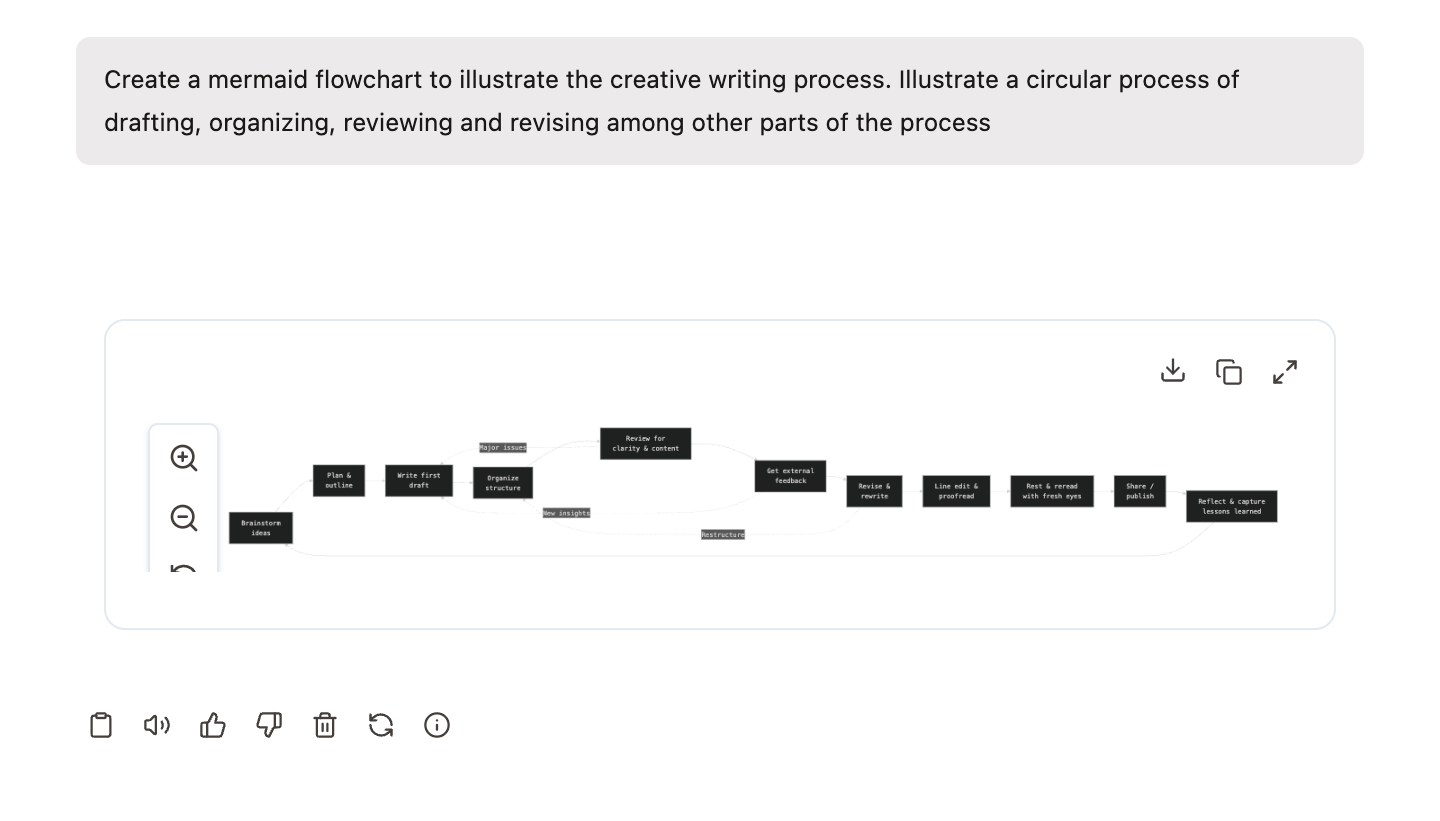
UvA AI Chat can help you create diagrams using Mermaid. Mermaid is a simple text-based way to describe diagrams. This is useful for visualizing complex processes, organizing ideas, or creating schemes for presentations and reports.
How do you create a Mermaid diagram?
To get a diagram that you can use directly, you need to explicitly ask for a Mermaid diagram, like the example below:
Other types of diagrams
You can ask UvA AI Chat for a variety of Mermaid diagrams in the same way, for example:
- Sequence diagrams
- Gantt charts
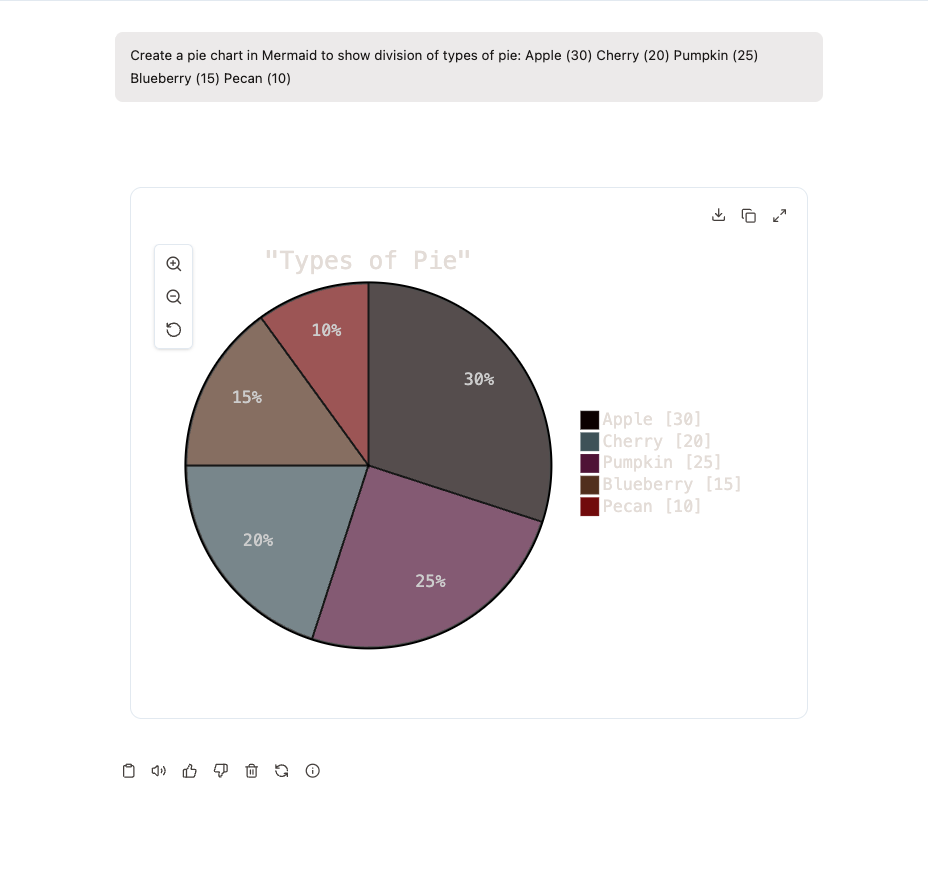
- Pie charts
Formulate your prompt for example like this:
“Create a pie chart in Mermaid to show division of types of pie: Apple (30) Cherry (20) Pumpkin (25) Blueberry (15) Pecan (10)”
2.9 Analysing .csv files and creating graphs with UvA AI Chat
UvA AI Chat can also read and analyze your .csv documents. This allows you to gain insight into annual reports, quarterly figures, survey results, and other tabular data. In the example video, a .csv file is uploaded, after which UvA AI Chat: (1) inspects the structure of the data (columns, data types, missing values), (2) runs a few basic statistical analyses (such as summaries or comparisons over time), and (3) generates visualizations such as line charts or bar charts based on the selected columns.
You can ask UvA AI Chat to write and run code (for example in Python) to perform more advanced analyses on your data and to create customized graphs. This makes it easy to explore trends, compare periods, or highlight specific variables from your dataset.
However, if you want to use these analyses and graphs in contexts where accuracy is critical (for example in a research project, thesis, report, or any formal publication), you must carefully check that the generated code and results are correct. You cannot automatically assume that all analyses are methodologically appropriate or free of errors. Always review the code, verify the calculations, and ensure that the chosen methods match your research question and data before using the results in important work.
Here is an example of what the graphs might look like:
2.10 Generative UI: interactive quizzes and follow-up questions
UvA AI Chat can use Generative UI: it can create interactive elements directly inside the chat, instead of only responding with plain text. One useful example is the Quiz Maker. When you ask something like "Quiz me on this article", "Quiz me on week 3" or "Create a quiz about Renoir’s late period", UvA AI Chat can generate a structured quiz with multiple-choice or open questions.
This can help you study more actively. Instead of rereading your notes, you can test what you remember, check whether you understand key concepts, and quickly see which parts of the material need more attention. When you are working in a project or have uploaded files, the quiz can also be based on that material. For example, you can ask: "Quiz me on the uploaded lecture slides" or "Make five questions about the main arguments in this text."
You can also make the quiz more specific. For example:
- "Quiz me on the key concepts, but do not give me the answers immediately."
- "Ask me one question at a time."
- "Make the questions more difficult."
- "Focus on definitions and examples."
- "Give feedback after each answer."
Generative UI also makes UvA AI Chat more conversational. The chat can ask follow-up questions when you request this, or when it needs more information to help you properly. For example, if your request is too broad, it may ask which topic, level, file or learning goal it should focus on. You can also actively invite this by asking: "Ask me follow-up questions before answering" or "Help me figure out what I need to study first."
In this way, Generative UI can support a more guided learning process. You can use it to move step by step through course material, practise retrieval, clarify confusing concepts and turn your own documents into active study exercises.
Please keep in mind that an AI-generated quiz and its grading may contain errors or hallucinations, and do not constitute an official or representative assessment of any course or module. Use the quiz as a study aid, not as a definitive indication of what will be tested or how your work would be graded.
2.11 Embedding a persona in Canvas
Use these instructions to embed a UvA AI Chat persona as a chat window on a Canvas page.
Step 1: Retrieve the embed code
- Go to the Personas list in UvA AI Chat.
- Click the three dots (⋮) next to the persona you want to share.
- Choose Embed Persona.
- Turn the Open for the whole organization toggle on.
This is important: without this setting, users outside your immediate group may not be able to see the persona.
- Choose the preferred embed method. The most commonly used option is iframe code.
- Copy the iframe code using the copy button.
The code looks like this:
<iframe src="https://aichat.uva.nl/embed/persona/[ID]"
  width="100%" height="700"
  style="border:0;"
  allow="clipboard-write; microphone"></iframe>
Step 2: Create a Canvas page
- In Canvas, go to Pages and click + Page (or open an existing page).
- Give the page a title.
Step 3: Switch to the HTML editor
There are two ways to open the HTML editor:
- Click View → HTML Editor in the rich-text editor toolbar, or
- Click the Switch to raw HTML Editor button below the text box.
Step 4: Paste the iframe code
- Paste the copied iframe code into the HTML text box.
- Save the page.
Result
The persona appears as a fully interactive chat window on the Canvas page. Students can ask questions directly to the persona you have set up for your course or module. For example, it can assist students in understanding course content, practising concepts, or finding relevant sources within the course. The persona is available directly in the environment where students already work, without needing to switch to another platform.