Part 1: Before you start
About this manual
This manual for UvA AI Chat is designed as a reference guide where you can look up information about the various features and settings of UvA AI Chat. If you're using UvA AI Chat for the first time - or if you don't have much experience with generative AI - we recommend starting with the "Getting Started with the UvA AI Chat" e-learning. This e-learning module walks you through all the basic features step by step and shows examples of how you can use the tool. Once you're familiar with UvA AI Chat, you can use this manual as a reference whenever you need it. You can also use the Technical Support Assistant within UvA AI Chat, which is based on this guide.
Because AI is evolving rapidly, this manual will also be regularly updated. The latest features and applications of UvA AI Chat will be included in future versions.
For questions about this guide and UvA AI Chat, please contact ai-tlc@uva.nl.
This manual is developed by TLC Central (see tlc.uva.nl)
Version 1.4 | Published 30th of June 2026
1.1 Responsible use
UvA AI Chat is designed to provide students and staff with a safer environment for working with generative AI. However, using UvA AI Chat safely is not the same as being allowed to use AI for every purpose.
When using generative AI at the UvA, always consider two separate questions:
- Can I process this information safely in UvA AI Chat?
- Is this use of AI allowed for this task or purpose under UvA policy?
UvA AI Chat provides stronger safeguards for privacy and data than commercial AI services. Chat content and uploaded data are not used to train AI models, and the UvA has implemented technical measures to protect information processed through the platform. Nevertheless, existing UvA policies and legal requirements concerning privacy, personal data, research data, confidential information and academic integrity continue to apply.
When working with personal, confidential or otherwise sensitive information, always check the applicable UvA guidelines before entering or uploading it.
Safe technology does not mean every use is permitted
The technical safeguards of UvA AI Chat do not automatically make every application of AI appropriate or permitted.
Whether AI may be used depends on the context and purpose. Different requirements may apply to education, assessment, research and administrative work. Students and staff remain responsible for ensuring that their use of AI complies with relevant UvA policy, legislation and professional or disciplinary requirements.
For the use of GenAI in education, consult the UvA Policy Framework and Guidelines on GenAI in Education. Faculties and programmes may provide additional guidance for specific courses or educational contexts. The UvA policy also emphasises that students must be able to demonstrably achieve their learning objectives independently.
Some uses of AI can have greater consequences for individuals and may therefore be subject to additional legal or institutional requirements. This can include, for example, AI used in decisions concerning admission, assessment results or examination monitoring. Do not introduce AI into such processes solely because the technology is available in UvA AI Chat. First determine which UvA policies, legal requirements and approval or review procedures apply.
You remain responsible for the output
UvA AI Chat, like any generative AI system, can produce mistakes, inaccuracies, fabricated information and biased output. Generated text may sound convincing even when it is incorrect.
Never rely blindly on AI-generated output. Check important claims against reliable sources and apply your own academic or professional judgement. You remain responsible for decisions you make and for work you submit or use, even when AI has contributed to it.
Use AI in a way that supports, rather than replaces, your work
Responsible use also means considering what role AI should have in the task itself. Particularly in education, repeatedly outsourcing tasks to AI can prevent you from developing the knowledge and skills that the task is intended to practise.
Use AI deliberately: consider what you want the tool to support, which parts of the work you should perform yourself, and whether using AI actually contributes to the purpose of the activity.
For further guidance, consult the UvA information on responsible use of AI, data and privacy, and the policies that apply to your specific work or study context.
1.2 Your first step: logging in
Open AI Chat in your webbrowser. Enter your UvA login details - this means your email address and password linked to your UvA account. For additional security, two-factor authentication (2FA) is required; you'll need to enter a verification code sent to your mobile device. After successful authentication, you'll have access to the UvA AI Chat dashboard and can use all its features.
1.3 The Technical Support Assistant in UvA AI Chat
What is the Technical Support Assistant?
The Technical Support Assistant is a standard, pre-configured chatbot (persona) in UvA AI Chat. Unlike the general AI, which draws on broad training data and can answer almost any question, the Technical Support Assistant operates within a strictly defined knowledge boundary: it only uses the official UvA AI Chat manual and the associated privacy documentation as its knowledge base.
This means:
- It only answers questions that can be answered based on the manual and privacy docs.
- It provides reliable, policy-consistent answers about UvA AI Chat's features and data handling.
When should you use the Technical Support Assistant?
You can use it to get accurate, helpful answers to all your questions about UvA AI Chat, whether they relate to its features, functionalities, capabilities, or anything else you may want to know about the platform. It is especially useful in the following situations:
| Situation | Why the Technical Support Assistant helps |
|---|---|
| You're unsure how a feature works | It explains features based on the official manual, not guesswork |
| You have a privacy question about uploaded documents | It answers strictly from the privacy policy |
| You want to know which AI models are available | It provides the up-to-date model overview from the manual |
| You're new to UvA AI Chat | It gives reliable information for new users |
| You need to verify what UvA AI Chat can and cannot do | It won't overstate or invent capabilities |
We do not recommend using the Technical Support Assistant for general academic tasks, writing assistance, or anything outside the scope of UvA AI Chat's own documentation - it will either decline or be unable to help with those.
How to activate the Technical Support Assistant?
- Click the "?" icon in the left sidebar of UvA AI Chat.
- Select Talk to Technical Support Assistant.
- Start a new conversation: the Technical Support Assistant is now active.
Practical use cases
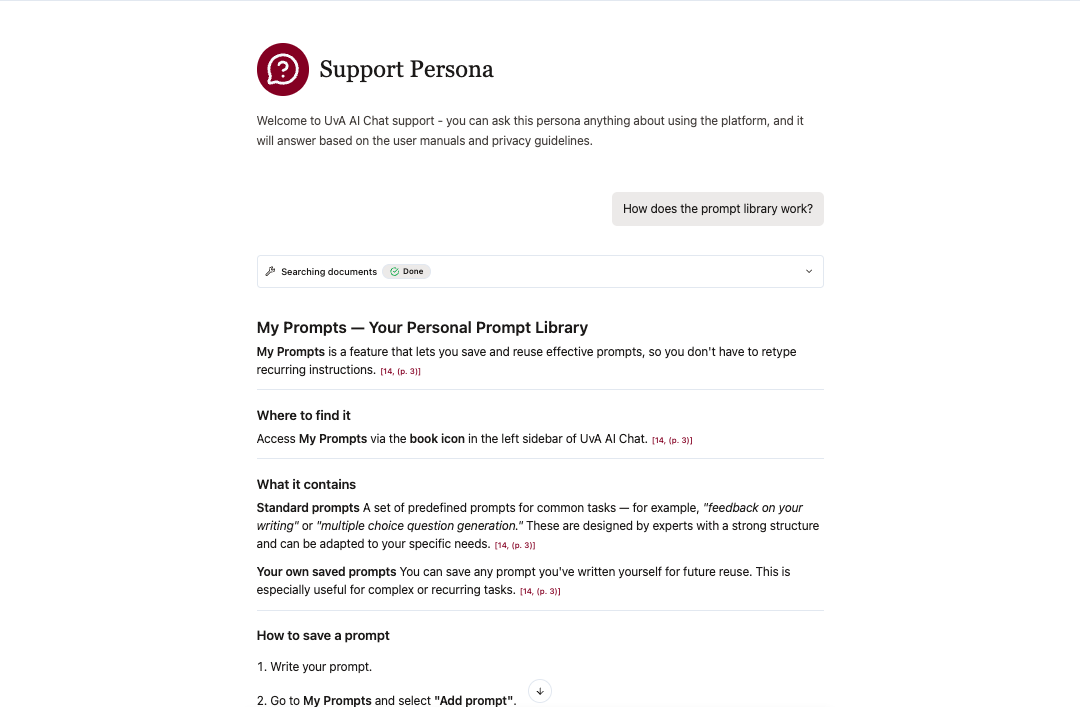
Use case 1: understanding a feature
You ask: "How does the prompt library work?"
Support assistant answers by explaining what the prompt library is, where to find it, and how it works.
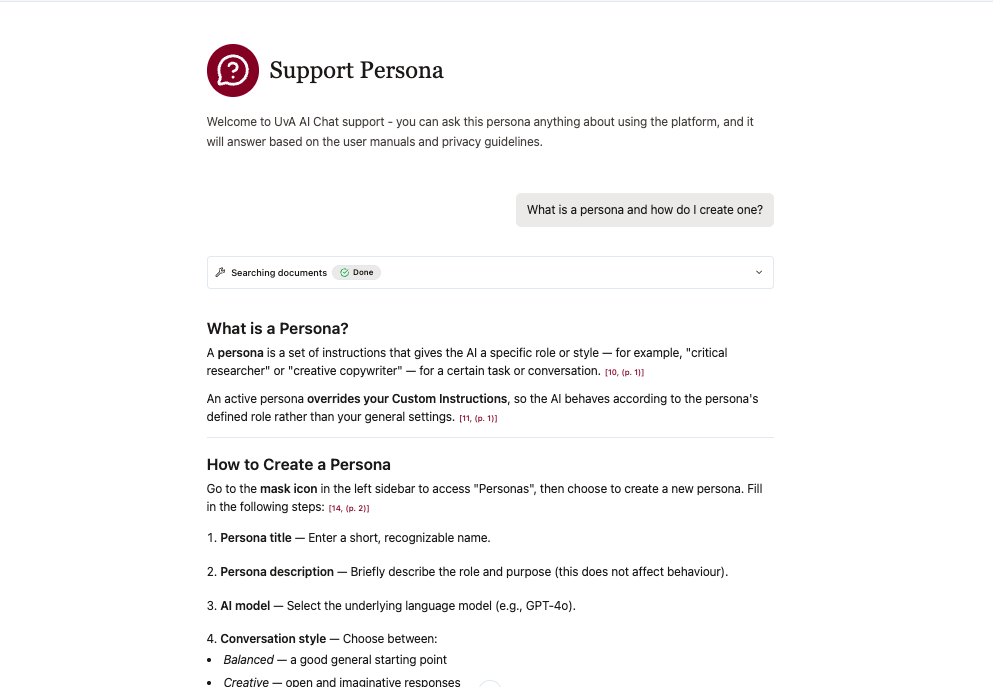
Use case 2: understanding personas themselves
You ask: "What is a persona and how do I create one?"
Support assistant answers by walking you through the 7-step persona creation process from section 3.2 of the manual, including setting a title, description, model, conversation style, behavior instructions, and uploading knowledge files.
1.4 Mobile interface
The UvA AI Chat can also be used via the browser on your phone: no app installation is required. Simply open the website on your phone and you will see an interface that is virtually identical to the desktop version.
The mobile version is particularly useful for quick, lightweight interactions when you are away from your computer. For example, you can:
- Revisit an earlier conversation while travelling or moving between meetings or classes
- Ask a quick question or follow-up question
- Brainstorm an idea, title, or first approach
- Quickly consult a persona or project that you already use
- Perform simple interactions that do not require extensive configuration or working with multiple files
The mobile interface is less suitable for more extensive workflows, such as working with several documents, comparing large amounts of information, configuring complex personas, or carrying out tasks that require frequent switching between sources and AI output. For these types of activities, the desktop version will generally be more convenient.
The navigation menu
The main difference from the desktop version is the navigation menu. On a computer, this panel is expanded by default on the left side of the screen. On your phone, the menu is hidden by default to save space.
You can open the menu using the arrow in the top-left corner of the screen. The menu will slide open and display the same options as on the desktop, shown with icons:
| Icon | Function |
|---|---|
| Speech bubble | General chat |
| Robot | Personas |
| Folder | Projects |
| Two people | Groups |
| Lines of text | Prompts |
| Puzzle piece | Extensions |
At the bottom of the menu you will find:
- ? — Additional materials, such as the manual and E-learning
- Person icon — Settings and account options
Tap on the arrow in the top left of the menu again to close it.
Other features
All other features work the same as in the desktop version. Refer to the relevant sections in this manual for more information on the individual options.