Part 3: Personalization and collaboration
3.1 Further configuration
To get the most out of UvA AI Chat, it's worth configuring it to match your preferences. To do this, go to the settings by clicking the person icon at the bottom left of the screen. Here, you can immediately set your preferred theme (light/dark). Next, click on 'Settings,' then on 'Personalization' for the most important personalization options:
- 'Memory Creation': Enable this to let UvA AI Chat save information about your previous prompts and conversations. This allows the AI to remember context from earlier interactions, such as your field of study (e.g. astronomy) or your hobbies (like cooking).
- 'Memory Context': For the chat to actually use your stored 'memories' in new conversations, you'll also need to enable this option.
- 'Memory Management': Here, you can review and manage the information UvA AI Chat has stored about you. You can adjust or delete saved memories at any time.
- 'Custom Instructions': Specify how you want the AI to behave or the writing style it should use by default. These instructions are applied in the background to every conversation you start (unless you're using a persona).
Practical example of 'Custom Instructions'
In the 'Custom Instructions' field, you might enter something like:
"Always answer in Dutch. Write your responses as an academic advisor: supportive, critical, and focused on improving my work. Use formal language and avoid excessive jargon. Structure complex answers with bullet points for clarity."
Tip! Use the share-button in the top right corner of your chats to share your findings with other UvA AI Chat users. Note: Only those within the UvA can access these chats.
3.2 "Personas": Customised Interaction
With a persona, you give UvA AI Chat a clear role, working method and tone. A persona helps responses better match a recurring task, a specific target group or a fixed way of working. For example, you can determine what expertise the AI should emphasise, how critical or supportive the tone should be, how structured the answers should be and which boundaries the persona should respect.
Creating personas with the Persona Maker
You do not have to create a persona only by filling in fields manually. In the persona maker (click "Add persona"), you can also build the persona by talking to the AI. Start by describing, in your own words, what you want the persona to do. The AI will then help you refine the persona: it can ask follow-up questions, make unclear points more concrete and adjust the settings in the configuration panel based on your description.
This works best when you are as specific as possible. Explain who the persona is for, what tasks it should support, what tone it should use, what it should and should not do, and how you want the answers to be structured.
You can also ask the maker to help improve the persona. Useful questions include:
- What information is still missing to make this persona better?
- Which settings would you adjust for this purpose?
- Can you make the persona stricter, clearer or more creative?
- Can you suggest better conversation starters?
- Can you rewrite the instructions so they are more useful for students, teachers or colleagues?
The better your conversation with the maker, the better the final persona will be. It is therefore useful to see the maker not just as a form-filling tool, but as an AI assistant that helps you design the persona.
The settings in 'Configure persona'
The right-hand configuration panel contains all settings for your persona. These can be filled in manually, but the AI can also help you complete and refine them.
- Persona icon: Use the plus icon to give your persona a recognisable icon or avatar. This is useful when you manage several personas or when others use your persona in a shared context. You can upload any image yourself when pressing "+"
- Name: Give your persona a short and clear name that immediately shows what it is for. A task-oriented name is usually more useful than a vague or general name. A clear name makes the persona easier to recognise in lists, previews and group contexts.
- Default language model: Choose the default language model that the persona will use. This is the model that is selected when someone starts using the persona. The choice of model can affect how fast, detailed or specialised the responses feel.
- Users may choose the language model themselves: Enable this option if users of this persona should be able to choose a different language model than the default one. This is especially useful when a persona is shared in a broader context, such as a course, team or group environment where different users may have different needs. For example, a teacher may set a recommended default model, while still allowing students or colleagues to choose another model themselves.
- Persona instructions: This is the most important content field. Here you describe the persona's role, expertise, goal, tone, boundaries and preferred way of answering. You can write these instructions yourself, but the maker can also draft and refine them for you. It can be helpful to ask the AI for refinement of these instructions.
- Make the instructions visible to others: Use this option to decide whether other users can see the persona instructions. Making instructions visible can be useful when transparency is important, for example in education, collaboration or quality assurance. If this option is turned off, the underlying instructions remain more in the background.
- Send opening message: Enable this if you want the persona to start the conversation with an opening message. This can help users understand what the persona is for, what kind of input they should provide and how they can use it effectively. The maker can also help write an opening message that fits your target group.
- Example response: Add one or more examples of a question and a desired answer. This is useful when you want to guide the style, depth or structure of the persona's responses. Concrete examples often make your expectations clearer than abstract instructions alone.
- Conversation style: Choose a preset style, such as 'Balanced', 'Creative' or 'Professional', or select 'Custom' to adjust the style more precisely. A preset is useful when you want to start quickly. Choose 'Custom' when you want to fine-tune the persona's tone and behaviour.
- Temperature and Top P: These settings influence how predictable or varied the persona's answers are. Lower values generally make responses more consistent and controlled. Higher values allow for more variation and freedom. If you are unsure, let the AI suggest suitable settings first and only adjust them if the responses feel too flat, too broad or too unpredictable.
- Sources: Add sources or materials that the persona should use as a knowledge base. This is useful when the persona needs to rely on specific documents, guidelines, manuals or other reference material.
- Allowed functions within the conversation: You can decide which functions are available when users interact with the persona. These may include internet search, searching uploaded documents, generating images, creating artifacts, using study mode or switching to other personas in the same chat. Only enable the functions that fit the purpose of the persona. This keeps the experience focused and avoids unnecessary distractions.
- Brief work instruction for the user: This is a short, user-facing instruction or description. It should explain what the persona does, who it is for and what the user should provide to get started. Keep this text short, concrete and task-oriented.
- Conversation starters: Conversation starters are predefined prompts that users can click to begin. Use them to show users what kind of questions or tasks work well with the persona. Good conversation starters help users get started quickly and also guide them towards effective use.
- Preview: Use 'Preview' to check how the persona will appear to users. Check whether the name, description, opening message and conversation starters are clear enough.
- Save: Save the persona when the instructions, settings and user-facing text are ready. A final check is useful to make sure the persona is not only well configured internally, but also clear and usable for others.
You can test and tweak the persona by clicking "Preview" or the Eye-icon in the top right corner.
3.3 "Groups": collaborating and sharing with others
The "Groups" feature makes it easy to work together on shared projects. It's ideal for teamwork - whether you're conducting research, preparing a joint presentation, or working on any other project. Within a group, you can easily share files, see each other's prompts, and work toward the same goals. Find the "Groups" function via the two-person icon in the left sidebar.
To create a group, click the "Add Group" button. Fill in the following textboxes:
- Group Name: Enter a name for your group in the "Group Name" field. This is a required field.
- Group Description: Provide a description for the group in the "Group Description" text box. This is generally the purpose of the group.
- Members: Add the email addresses of the people you want to be members of the group. You can separate multiple email addresses with a comma.
- Owners: Enter the email addresses of the people who will be the owners of the group. These should also be separated by commas. These owners will be able to edit the group.
- Personas: If applicable, select the personas for the group. Tip! When given editing rights, you can also edit personas together.
- Prompts: If applicable, select any specific saved prompts for the group.
- Start and End Dates: Choose a start date and an end date for the group using the date pickers.
- Save: Click the "Save" button to finalize the creation of the group.
By creating a group, you can share specific chats, personas, or prompts. You control whether added members can only use the personas ('Members') or also edit them ('Owners'). As a teacher, for example, you might add students as members so they can use a specific persona you've created. You can also set a start and end date for the group if needed. Good to know: as owner of the group, you can hide member visibility from others by toggling "hide members from each other" in the options menu
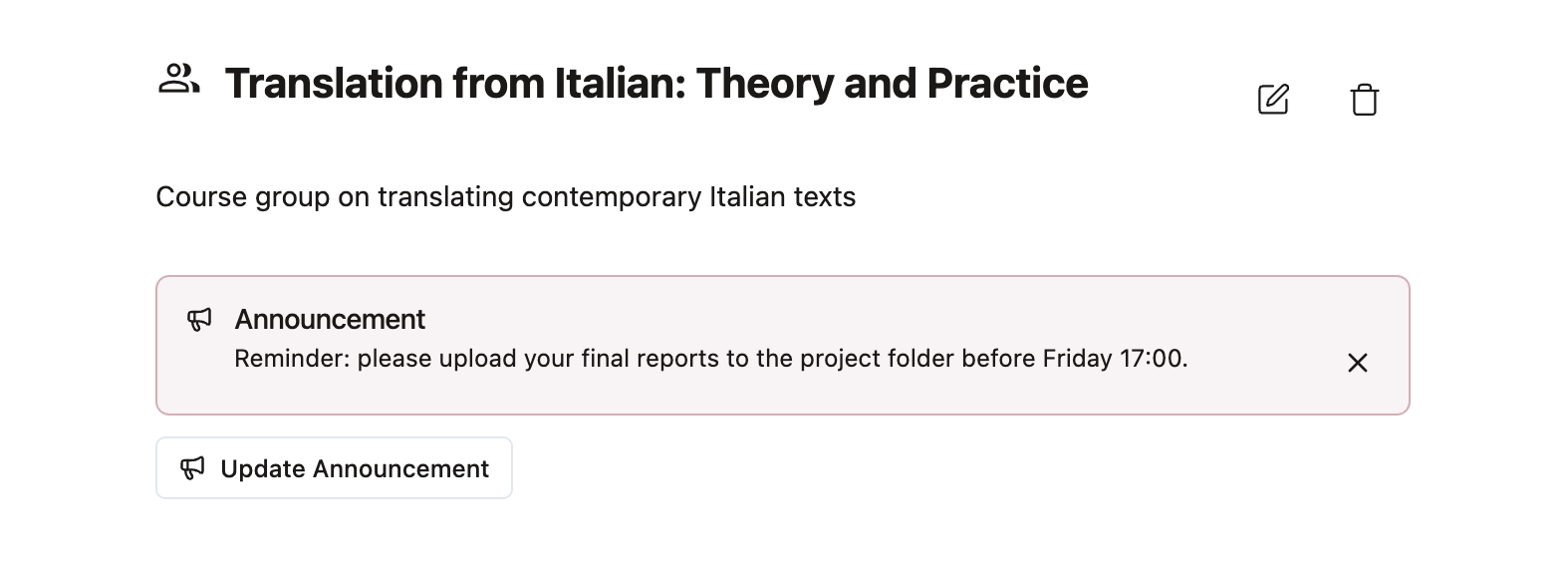
Tip! You can now share annoucements with members of your group by using the button "Post Announcement".
3.4 "Projects": your organized workspace
Under "Projects" (the folder icon in the left sidebar), you can set up your own projects. This acts as a digital container for all materials related to a specific task or research project. Use it to keep your chats organized, especially if you have multiple conversations on the same topic. To get started, click '+ Add Project' at the middle of the screen. Within a project, you can collect chats, prompts, and personas in one place. This lets you easily navigate back to earlier prompts and responses, making it simple to pick up right where you left off.
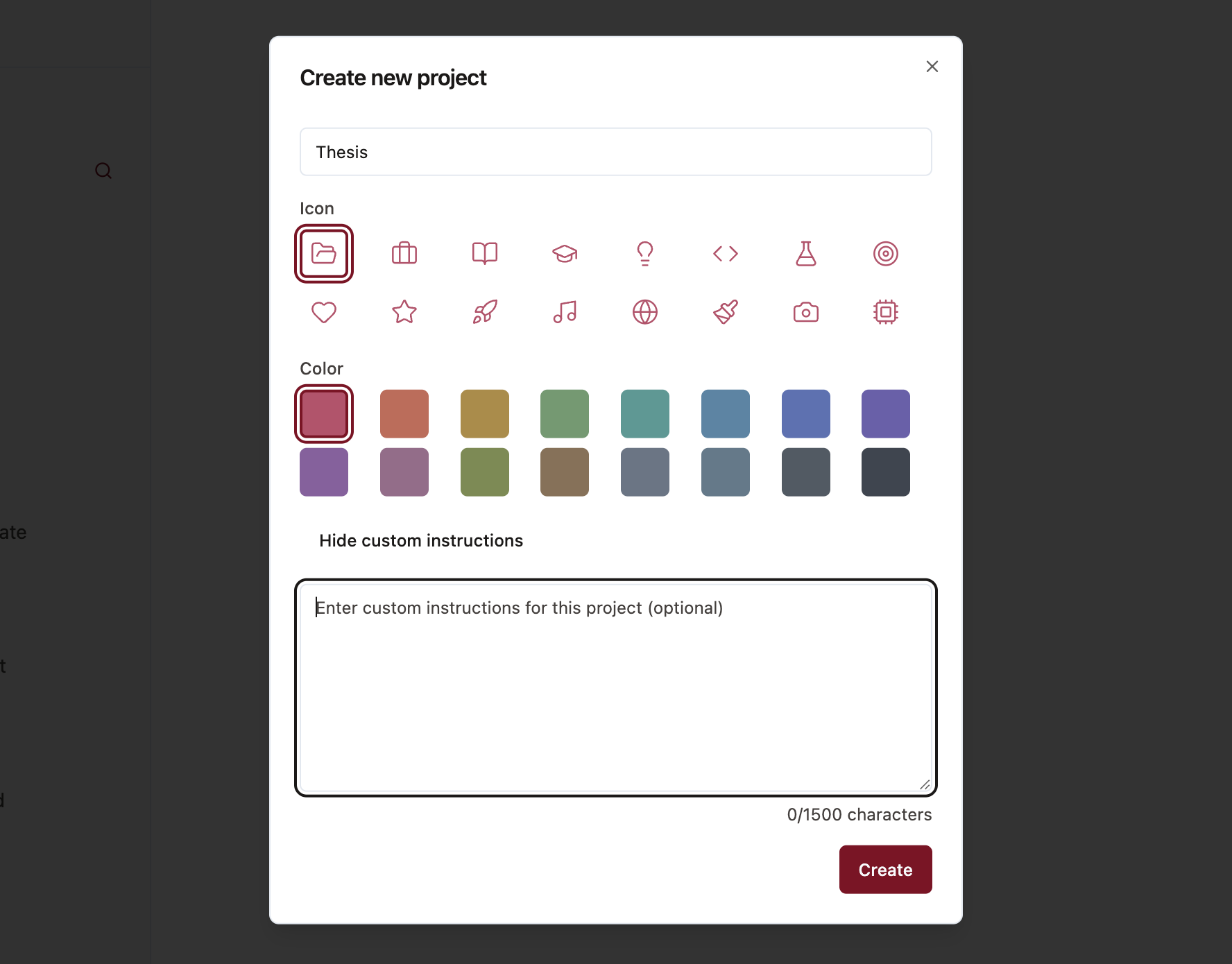
When setting up the Projects folder, you can assign a title, choose an icon and color to visually distinguish it, and add custom instructions. Custom instructions define specific guidelines or preferences for how the assistant should behave or respond within that project, helping tailor outputs to your needs.
For all Project-specific functionalities, see below.
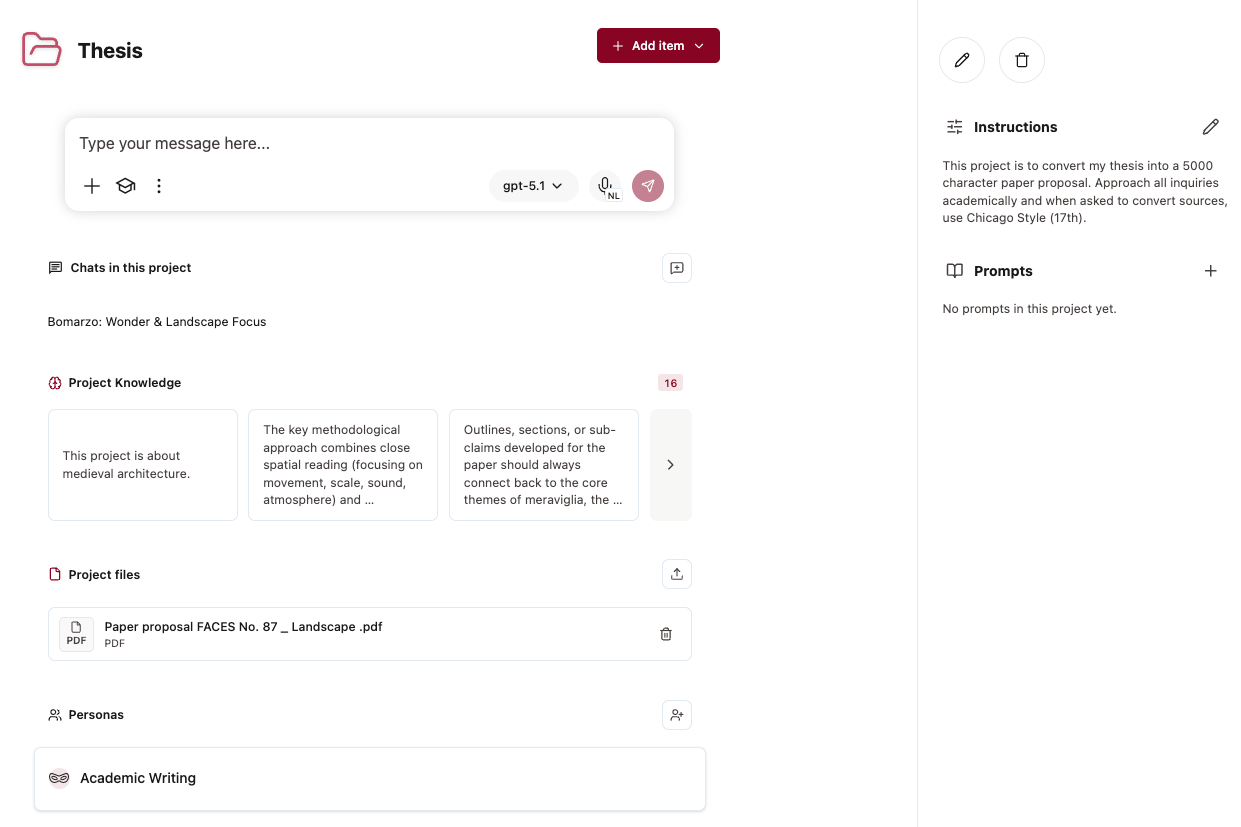
+: Upload documents to this specific chat, or the entire project. The project will save that file under "Project files". You can also access your Promp Library here to select frequently used prompts.
Chats in this project: Access and revisit previously used conversations from within the project. You can also import existing chats from the general chat using "Add existing chat".
Project knowledge: This feature stores key information, insights, and decisions related to your project so the assistant can use them as ongoing context in future chats. This helps maintain consistency, avoid repetition, and ensure that responses stay aligned with your project’s themes, methods, and goals.
With the Add card function, you can manually create new knowledge entries by saving important notes, guidelines, or conclusions. Each card represents a single piece of remembered information. For every card, you can edit the content, pin it to give it greater importance in the assistant’s context, or hide it to exclude that information from being used in responses.
Project files: See what project files are being used in this project and add new documents.
Personas: See what persona's you have access to from within this project and add new ones.
Instructions: Give the project assistant extra context and instructions to better adhere to your needs.
Prompts: See what prompts you have access to from within this project and add new ones.